

Attach a file in chat
ProofHub chat allows you to share photos, screenshots, and files with your text messages, enabling instant feedback and approvals from team members.
-
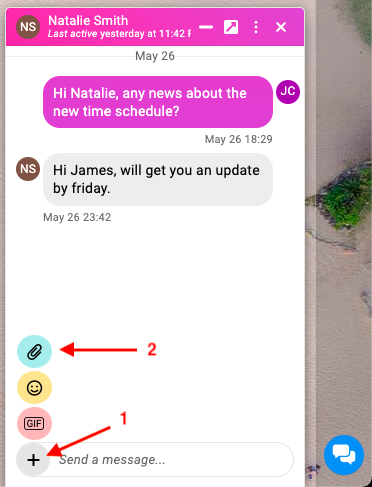
In the chat window look for the “+” icon at the bottom. Click on the paperclip icon to open the file attachment menu.\
-
Select Your File: A window will appear allowing you to browse your local device storage. Navigate to the file you want to share and select it.
-
Send and Collaborate: Once you’ve chosen the file, hit “Enter” on your keyboard. Your file will be uploaded and posted within your chat conversation.
-
Note:
-
You can see files posted earlier by scrolling up through the chat history.
-
To download a file from chat, right-click on the file and select Save as.
-
Last updated today
Built with Documentation.AI