

How to manage apps and integrations
ProofHub offers a variety of built-in apps and integrations with third-party tools to enhance your project management experience.
Default apps
ProofHub includes several built-in apps that facilitate various aspects of project management:
-
Gantt: Visualize project timelines and track progress using Gantt. Plan and schedule tasks with dependencies.
-
Notes: Create, organize, and share notes for quick reference and collaboration.
-
Files: Store, organize, and share files within your projects. Manage versions and collaborate on documents.
-
Time: Track time spent on tasks and projects. Generate timesheets and reports for better time management.
-
Reports: Generate detailed reports on project progress, team performance, and more to make informed decisions.
-
One-to-one chat: Communicate directly with team members through instant messaging.
-
Group chat: Facilitate team communication with group chats for collaborative discussions.
Integrations
ProofHub integrates with various third-party applications to streamline your workflow and enhance productivity:
-
FreshBooks: Integrate with FreshBooks for seamless invoicing and expense tracking.
-
QuickBooks: Sync with QuickBooks to manage accounting and financials efficiently.
-
Google Calendar and iCal: Sync ProofHub with Google Calendar and iCal to keep track of your schedules and deadlines.
-
Box: Integrate with Box to manage and share large files securely.
-
Dropbox: Connect with Dropbox for easy file sharing and storage.
-
OneDrive Personal: Sync with OneDrive for seamless file management and sharing.
Install and uninstall apps
-
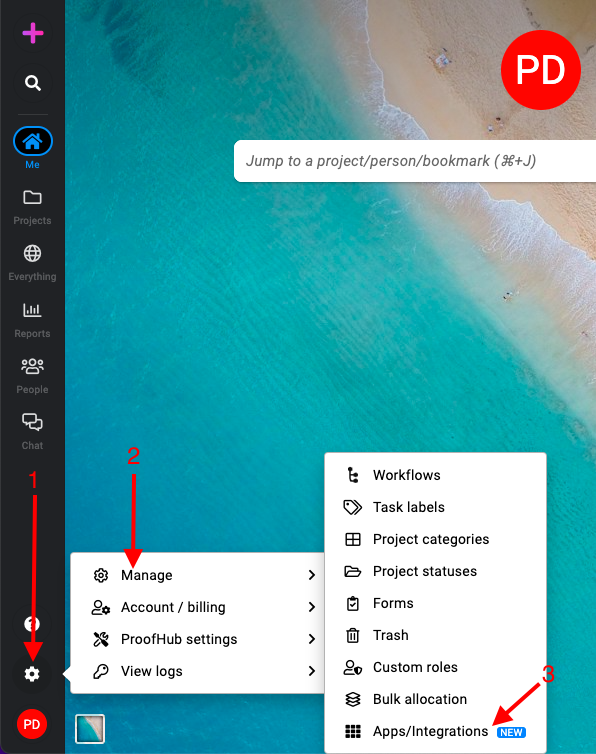
Manage section: Select the “Manage” section and select “Apps/Integrations“.\
-
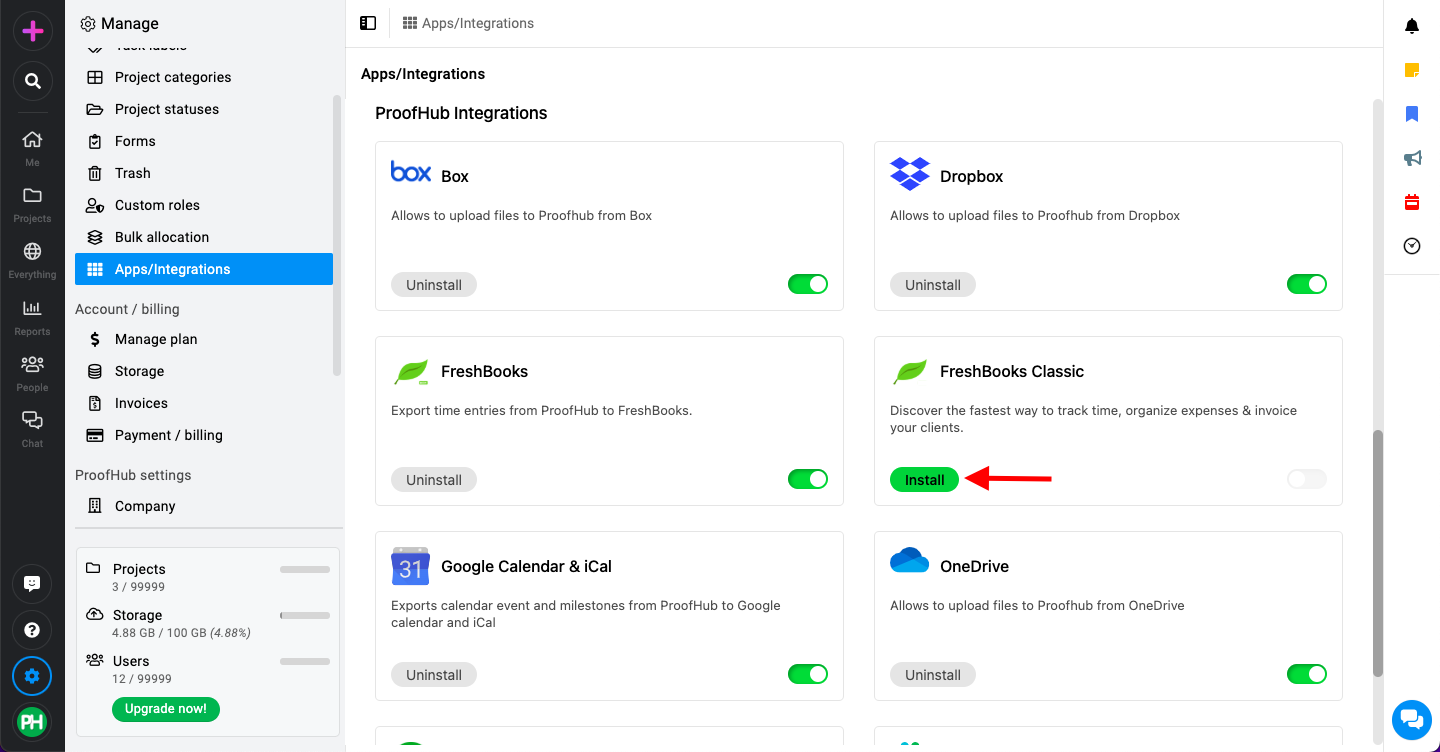
To install an app, click on the “Install” button next to the app.\
Install Integeration -
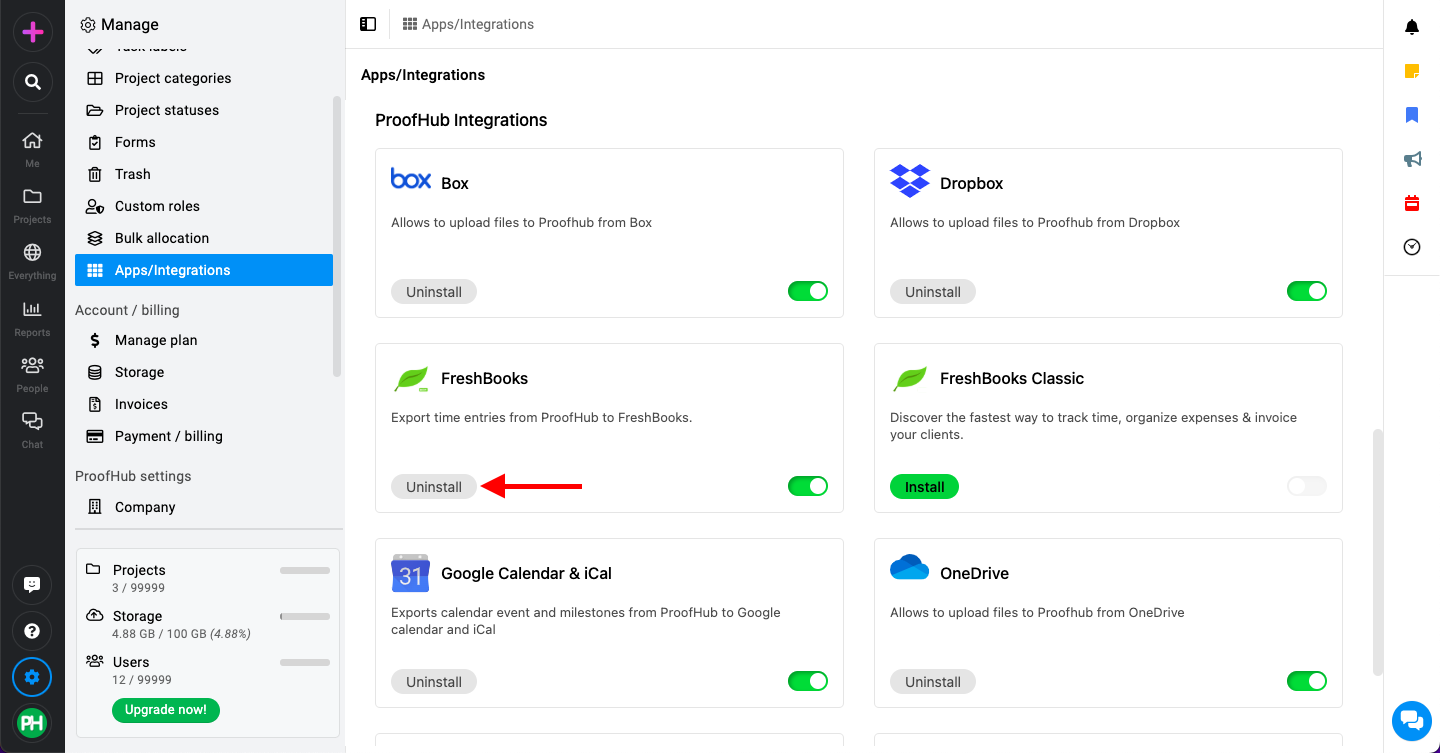
To uninstall an app, click on the “Uninstall” button next to the app you want to remove.\
Disable sections
-
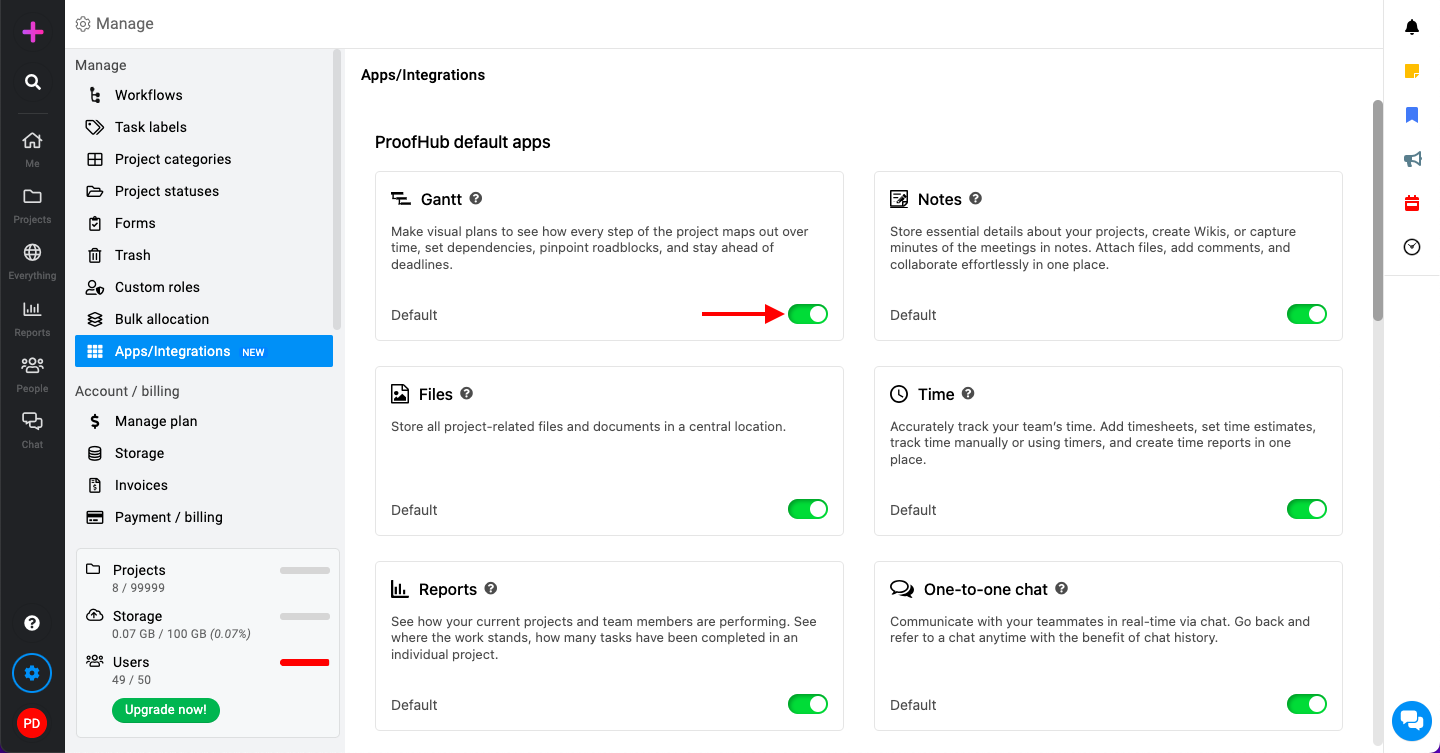
Locate the section you want to disable.
-
Toggle the switch button to turn off the section.\
-
To re-enable a previously disabled section, toggle the switch button to turn on the section.
Last updated today
Built with Documentation.AI