

How to utilize all gantt
All gantt in ProofHub offers a clear and detailed overview of task advancement across multiple projects, bringing transparency and clarity to your workflows.
-
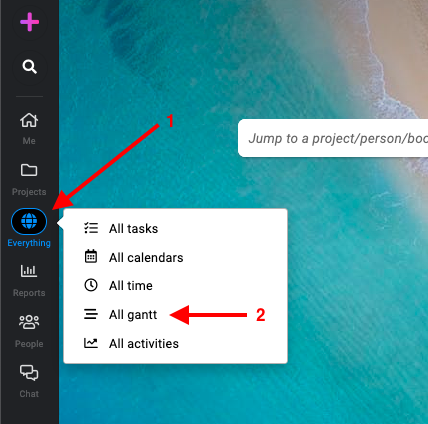
Click on “Everything” and select “All gantt”.\
-
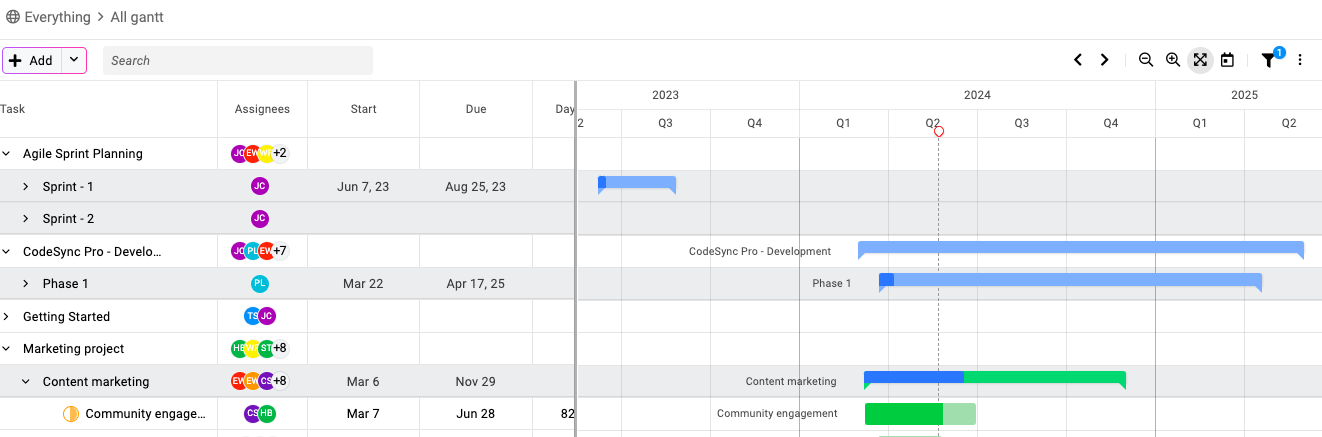
In the “All gantt” view, you will see a list of all tasks on gantt from all your projects.\
Filters
Click on the filter icon at the top-right corner of the page.\
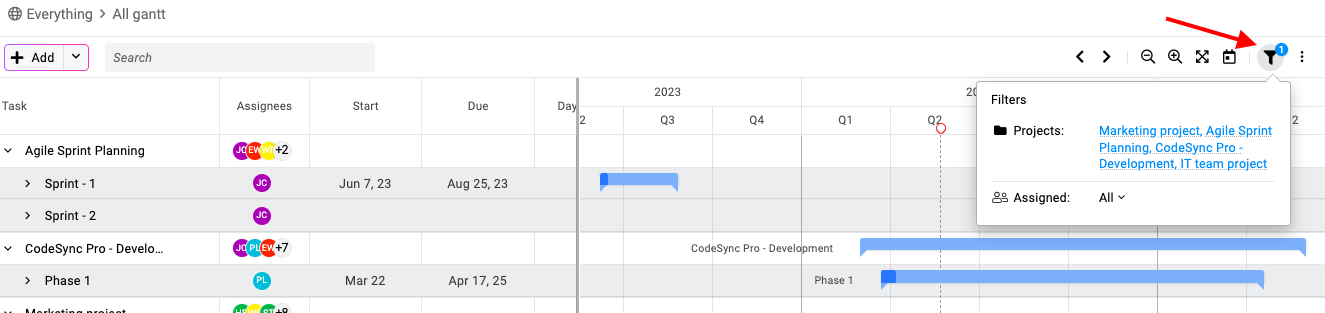
Projects: You can select one or multiple projects to display in the gantt view and click “Apply”.
Assigned: You can select a specific person or all team members to view their tasks in the gantt view click “Apply”.
Export
There are two ways you can export the gantt in ProofHub.\

-
Click on the three dots icon at the top-right of the page.
-
Select “Print” to print the gantt chart.
-
Or else, download the gantt chart in PDF format by choosing the “Export as PDF” option.
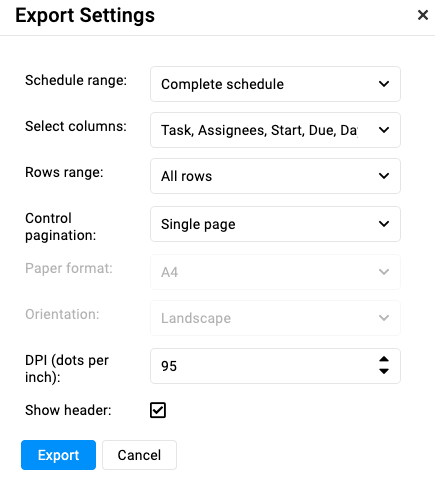
**Note:** **If you can’t fit the gantt chart on one screen while exporting/printing, then try changing the settings as follows:
-
*Change the DPI to “*200“
-
*Select the orientation to “*Landscape“
-
Select the paper format to “A3“
Last updated today
Built with Documentation.AI