

How to add and manage task labels
ProofHub’s task labels are a way to categorize and prioritize your tasks. They act like tags that you can add to tasks to help you:
-
Organize: Group similar tasks together based on urgency, stage of completion, or any other criteria you define using labels.
-
Prioritize: Easily identify important tasks by assigning labels like “High Priority” or “Urgent.”
-
Filter: Quickly find specific tasks by filtering based on assigned labels.
These labels are completely customizable, allowing you to create a system that works for your specific needs and workflow.
Add a new task label
-
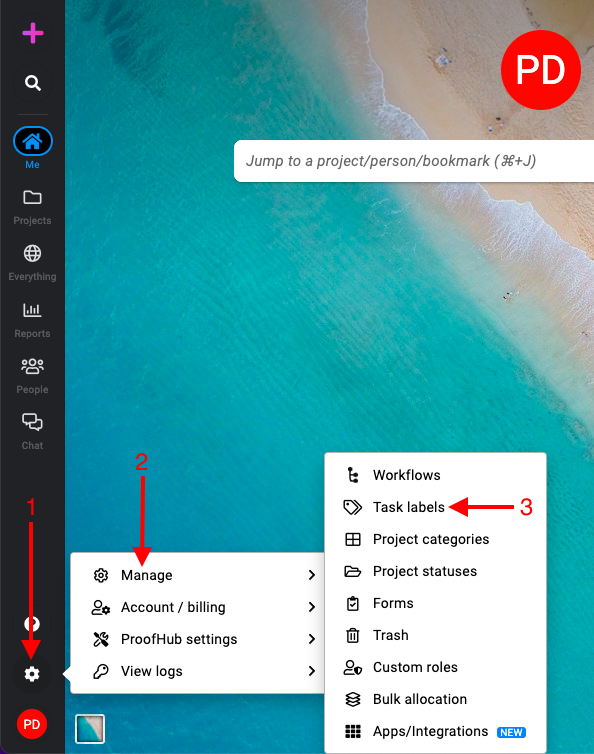
Manage section: Select the “Manage” section and select “Task labels“.\
-
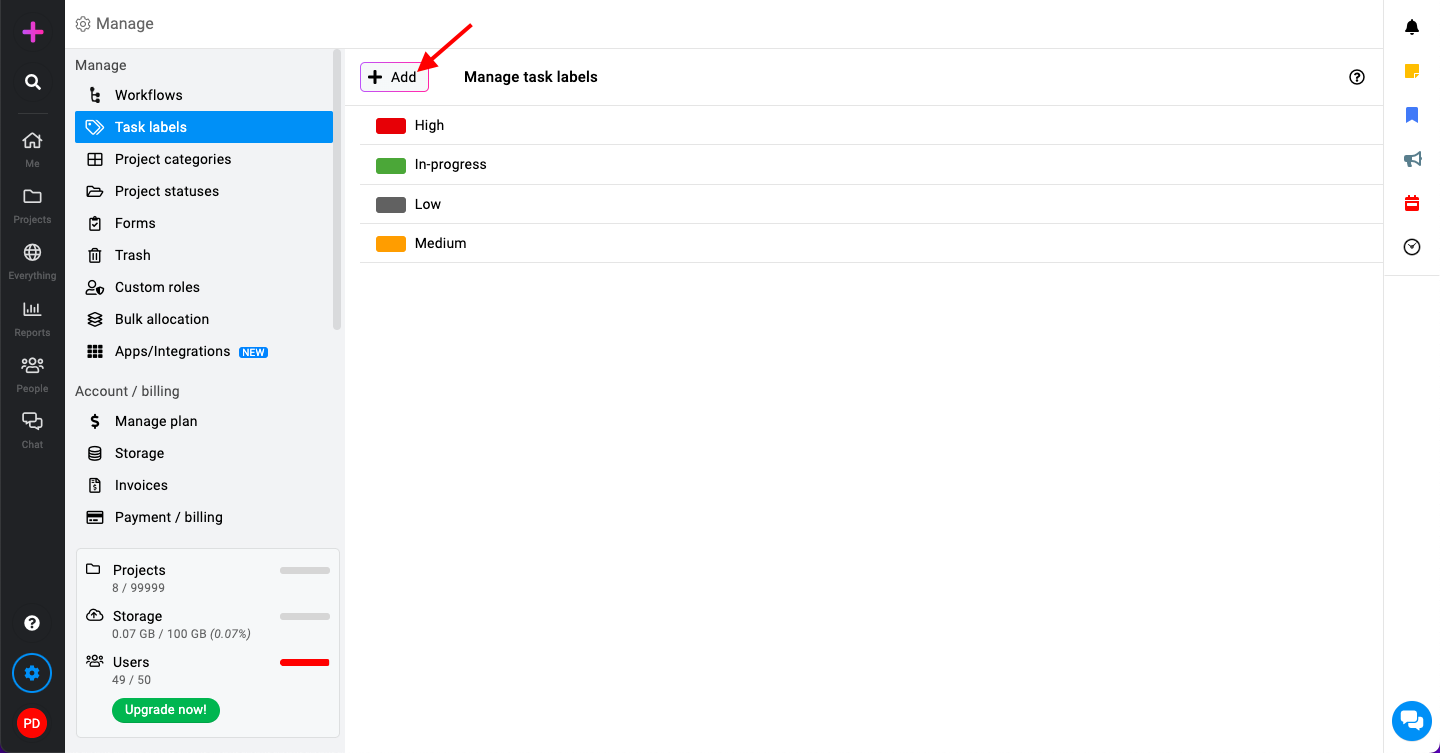
Add a new task label:\
-
Click on the “Add” button.\
-
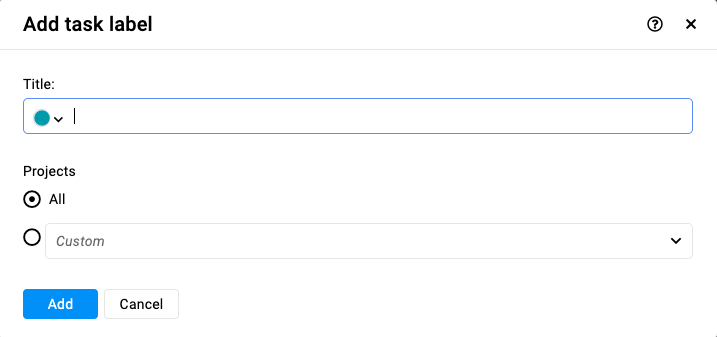
Enter a title for your new task label.
-
Projects – Select “All” to allow labels to be used in all projects or just for a****few projects.
-
Click “Add”.
-
Edit a task label
-
Right-click or click on the three dots and select “Edit“.\

-
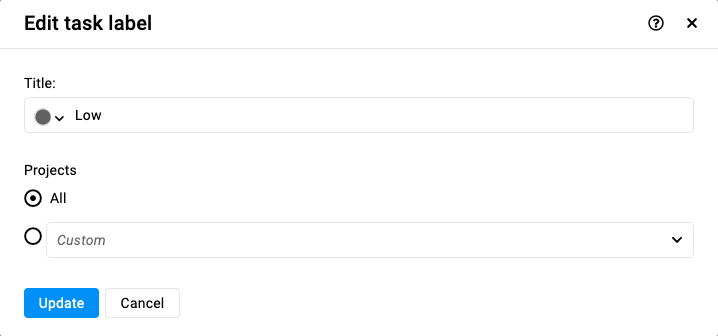
From the edit window make changes as required.\
-
Change the task title or task label as required.
-
Click “Update” to save changes.
-
Delete a task label
-
Right-click or click on the three dots and select “Delete”.\

-
Select “Yes” within this confirmation window to proceed with deleting the task label.\

Note: ProofHub keeps items in the “Trash” for 15 days. Restore them easily by going to Trash. For detailed instructions on restoring deleted items from the trash, please refer to Trash.
Last updated today
Built with Documentation.AI