

How to search and filter notebooks and notes
Search notebooks
-
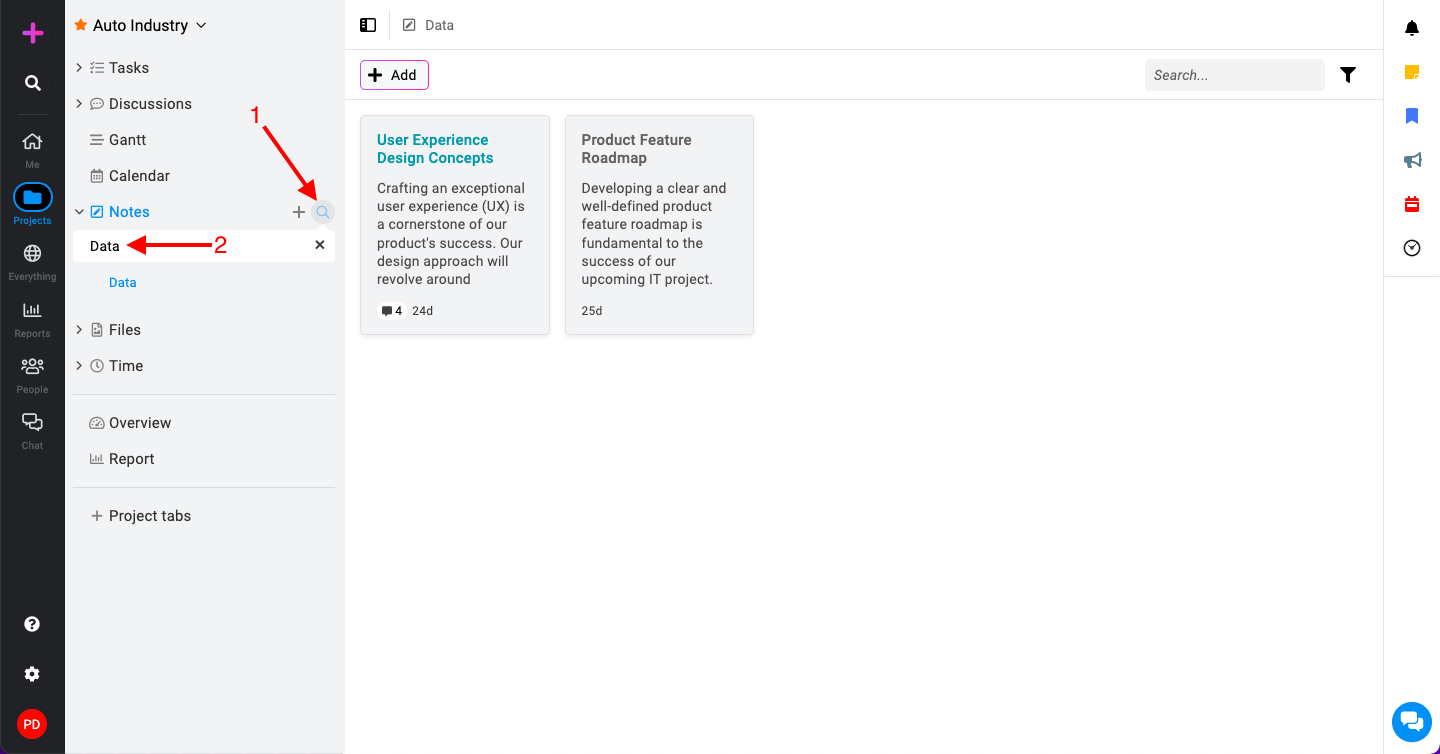
Open the notes section: Navigate to the project and click on the “Notes” section.
-
Search for a notebook:\
-
Click on the search icon to activate the search bar.
-
Start typing the name of the notebook you are looking for in the search bar.
-
As you type, ProofHub will display a list of notebooks that match your search query.
-
Search notes
-
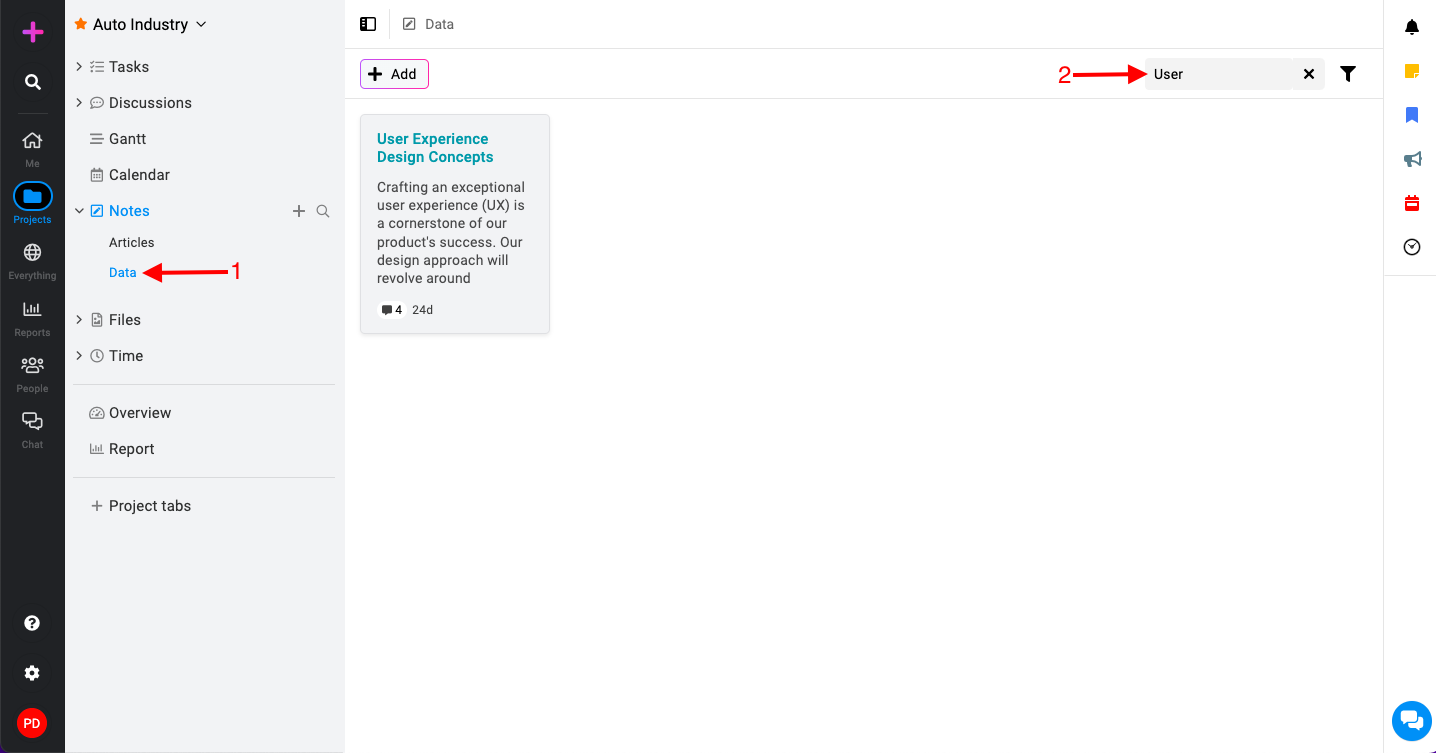
Search for a note: Click on the notebook that contains the note you want to search for.\
-
In the top right corner of the notebook view, locate the search bar.
-
Type the name of the note you want to find into the search bar.
-
Filter notes
-
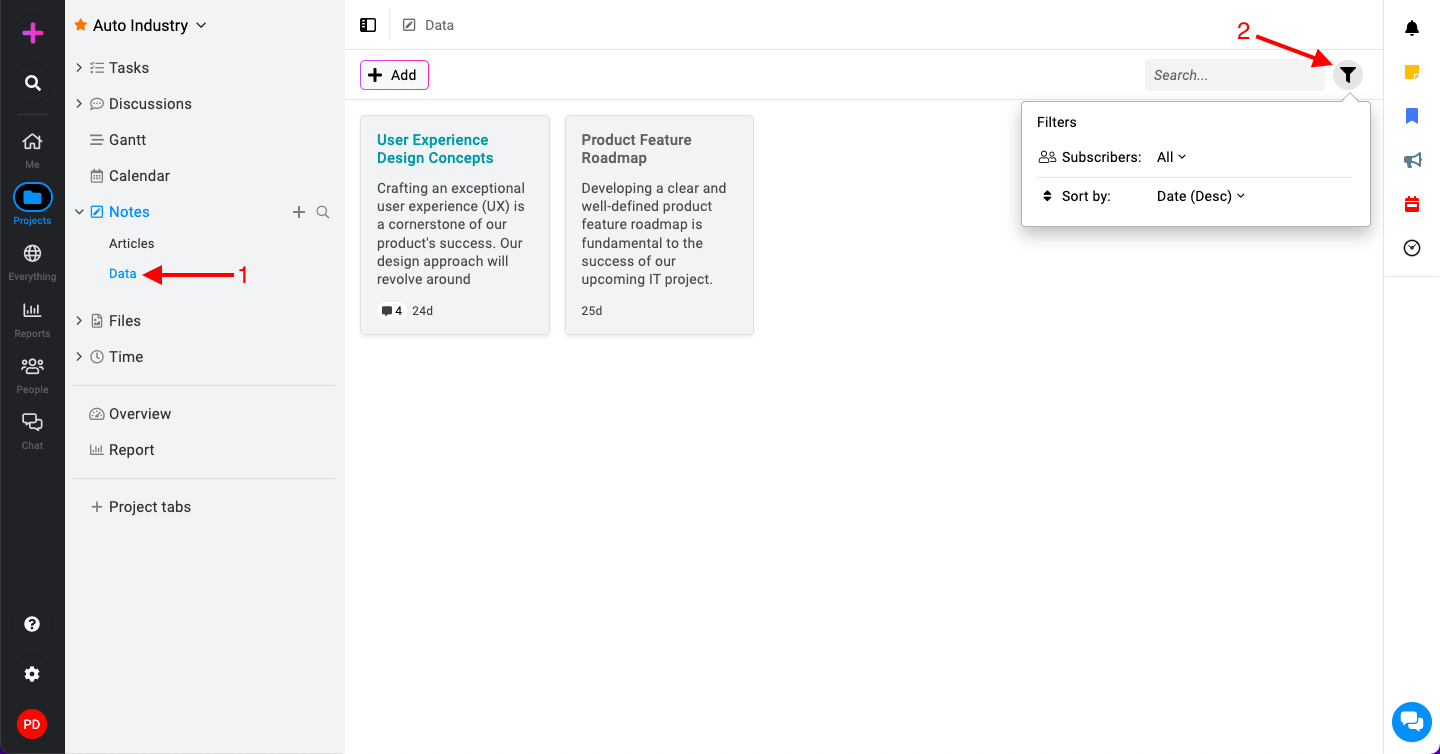
Filter options: On the top right corner of the notebook view, click on the filter icon.\
-
Apply filters: Once you click the filter icon, a dropdown menu with available filter options will appear.
-
Subscribers – This filter allows you to see notes based on who is subscribed to them.\

-
Select the subscriber(s) you want to filter from the list.
-
Click on “Apply“.
-
-
Sort By – Click on the “Sort by” option. You will see three sorting options:\

-
Date: Sort notes by the date they were created or last modified.
-
Name: Sort notes alphabetically by their title.
-
Color: Sort notes based on their color labels.
-
-
-
The notes will automatically rearrange based on your selection.
Last updated today
Built with Documentation.AI