

How to manage workflow in tasks
-
Accessing task workflow:
-
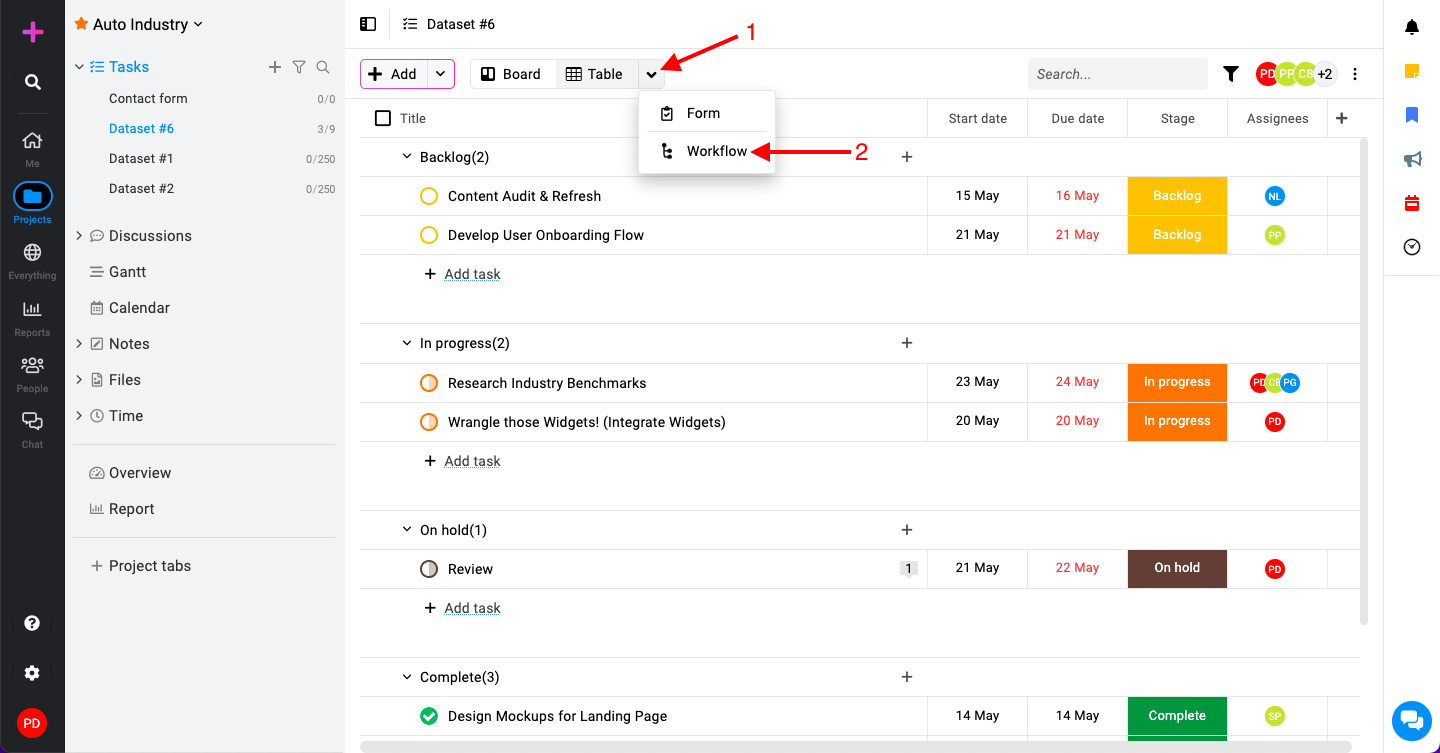
Select the task list and at the right next to the “Table view” option and select “Workflow“.
-
-
Editing workflow stages:
-
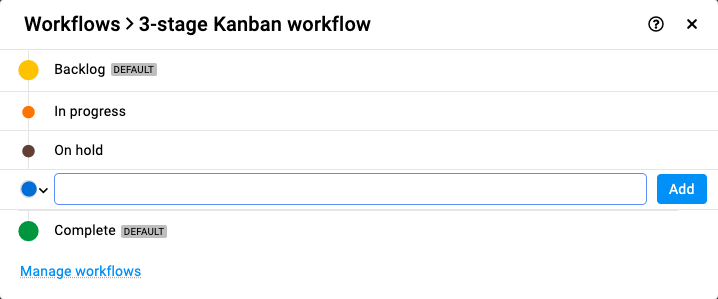
In the Workflow edit window, you’ll see options to edit the workflow stages.
-
Enter the name of the new stage and choose a color to represent it.
-
Change stage color: Click on the color next to a stage name to change its color.
-
Rename stage: Rename stage.
-
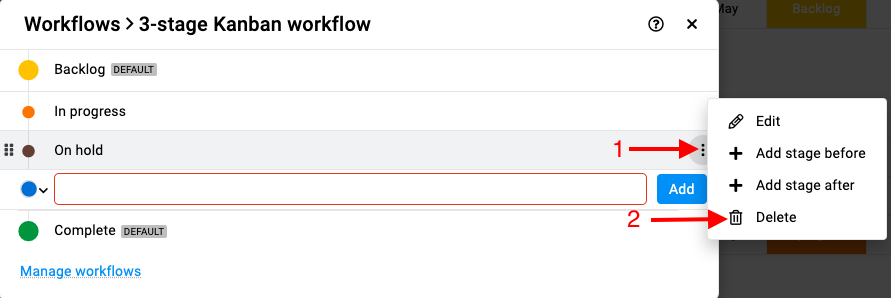
Delete stage: Hover over a stage, click on three dots, and select “Delete“.
-
-
Apply changes:
-
Once you’ve made the necessary changes to your workflow stages (adding, renaming, deleting stages, changing colors), simply close the workflow edit window.
-
The task list will instantly reflect the updated workflow with the new stages or modifications.
-
Last updated today
Built with Documentation.AI