

How to subscribe and download the calendar
Subscribe to a calendar
-
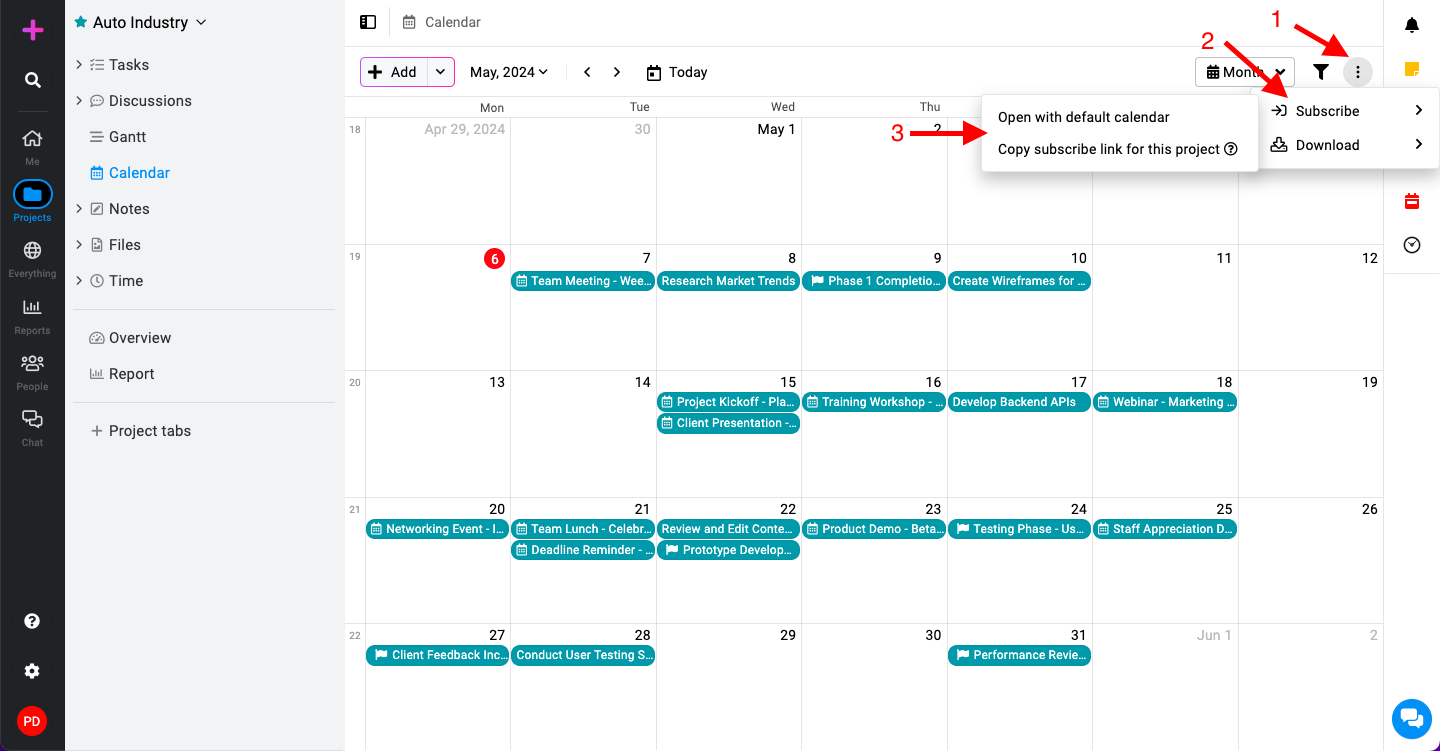
Open the context menu: In the calendar view, click on the three dots located at the top right corner.
-
Select subscribe: Under the context menu, select the “Subscribe” option.
-
Open with default calendar:
- This option will open the default calendar application on your device (e.g., laptop, desktop) and add the ProofHub calendar automatically.
-
Copy subscriber link for this project:
- Choose this to copy the ProofHub calendar link, which you can then add to your preferred calendar tool manually.
-
Download a calendar
-
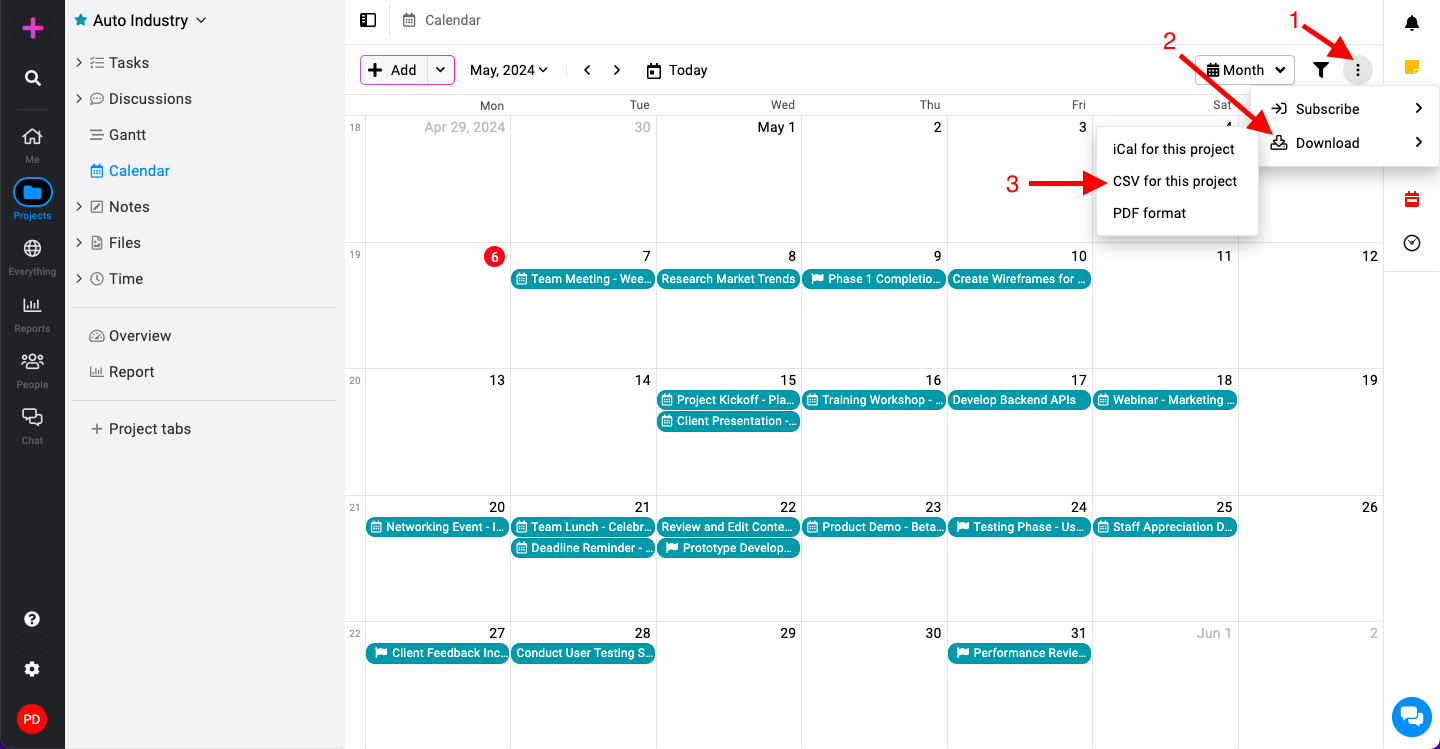
Open the context menu: Click on the three dots at the top right corner of the calendar view.
-
Select download: From the context menu, select the “Download” option.
-
iCal for this project:
- Download the calendar data in iCal format, suitable for importing into various calendar applications.
-
CSV for this project:
- Download the calendar data in CSV format, useful for spreadsheet applications or custom integrations.
-
PDF format:
- Download a printable version of the calendar data in PDF format.
-
Last updated today
Built with Documentation.AI