

One-to-one chat
ProofHub’s one-on-one chat functionality fosters instant communication and collaboration. Connect directly with colleagues, ask questions, share updates, and keep projects moving forward efficiently.
-
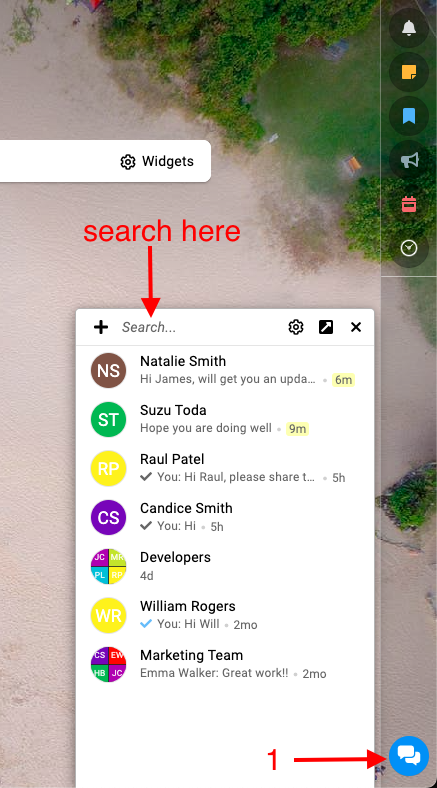
Locate the chat bubble icon at the bottom-right corner of your ProofHub account. Click on it to open the chat window.\
-
Find Your Contact:
-
Direct Selection: Click on the name of the team member you want to chat with from the list displayed in the chat window.
-
Search Functionality: Utilize the search bar located at the top of the chat window. Type the name of your desired contact, and the system will filter the list accordingly.
-
-
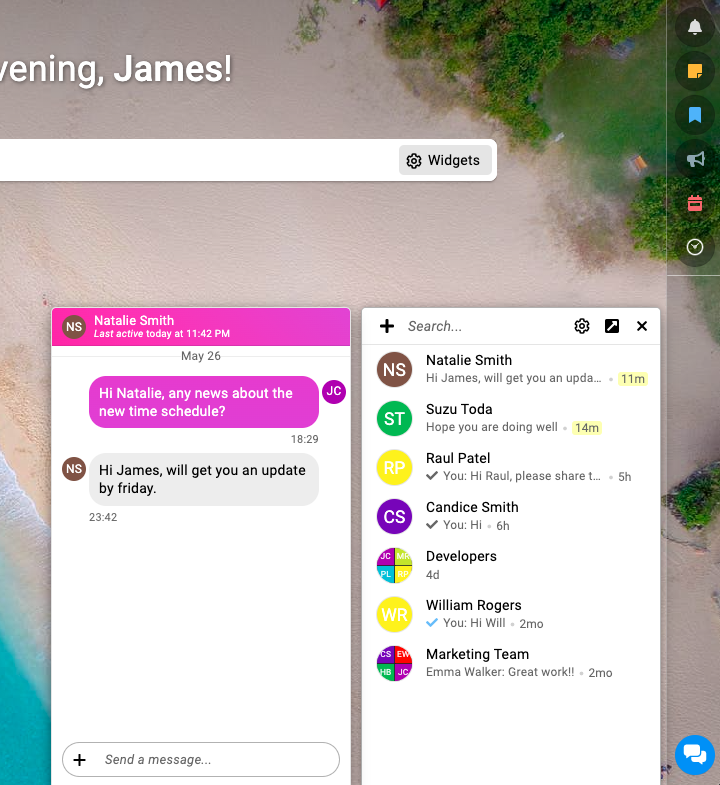
Once you’ve identified the recipient, compose your message in the designated white box that reads “Send a message”.\
-
Send and Chat: Hit the “Enter” key on your keyboard to send your message and begin your real-time conversation.
-
Note:
-
Your recent chats will appear at the top of the chat window by default.
-
In chats, you can send emojis as well as attach files with your text message.
-
For every chat message, you will receive a desktop notification. You can manage these notifications from the “My preferences**” window.
-
An account owner can see all the users in the chat list regardless of the projects assigned to them, whereas an admin and a normal user can only see the account owner and the people they are working with.
-
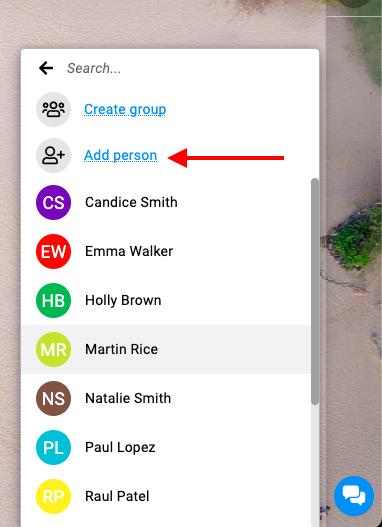
If the person you wish to chat with is not available in your chat window, then click on the “Add person” option to add the person in your account.\
-
Last updated today
Built with Documentation.AI