

Group chat
ProofHub’s group chat feature enables you to create groups for effortless discussions with everyone involved in a project or task. Instantly exchange messages, pictures, and files with everyone involved, keeping communication flowing and everyone on the same page.
Create a group
-
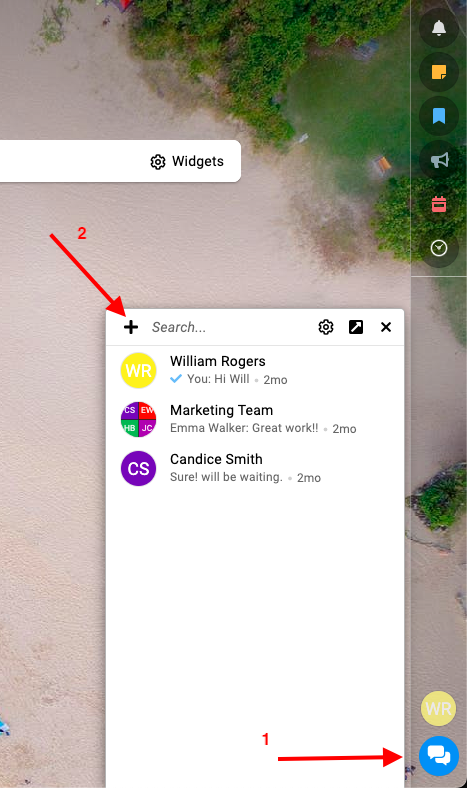
Navigate the chat window: Select “+” icon at the top left side of the window.\
-
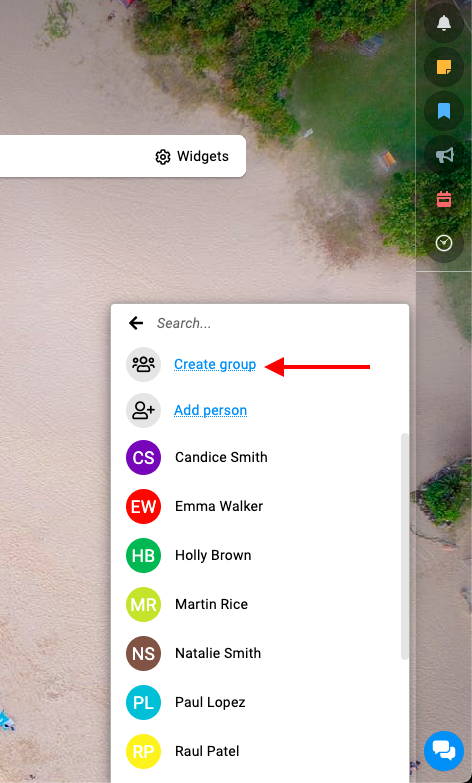
Select the create group option.\
-
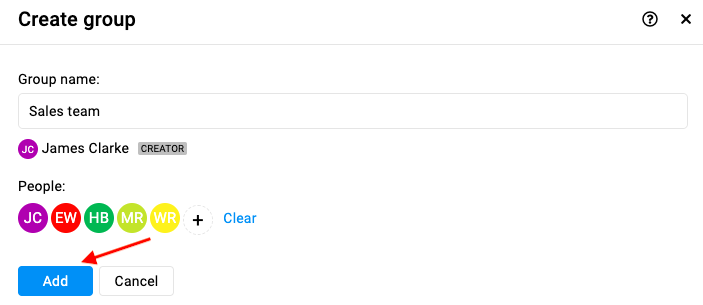
Build your group: In the create group window you can:\
-
Craft a group name: Give your group chat a clear and descriptive title to reflect its purpose.
-
Add team members: Select the individuals you want to include in the group chat by searching for their names or browsing the team list.
-
-
Finalize the group: Once you’ve added all desired participants, click the “Add” button to create your group chat.\
Leave group
-
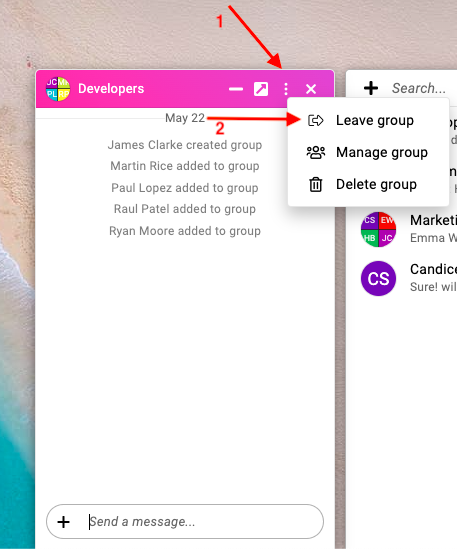
Select the group: In the group chat window click the three dots and select the “Leave group” option.\
-
Select “Yes” within this confirmation window to leave the group.\

Manage group
-
In the group chat window click the three dots and select the “Manage group” option\

-
Update the group details like the name of the group or manage the people in the group and select “Update” to confirm the changes.\

Delete group
-
In the group chat window click the three dots and select the “Delete group” option.\

-
Select “Yes” within this confirmation window to delete the group.\

**Note:**** **Once a group is deleted, it cannot be restored.
Last updated today
Built with Documentation.AI