

How to utilize all time
ProofHub’s “All Time” section, located within “Everything” provides a comprehensive record of all time entries logged across all projects and users.
Sort and filter all time entries
-
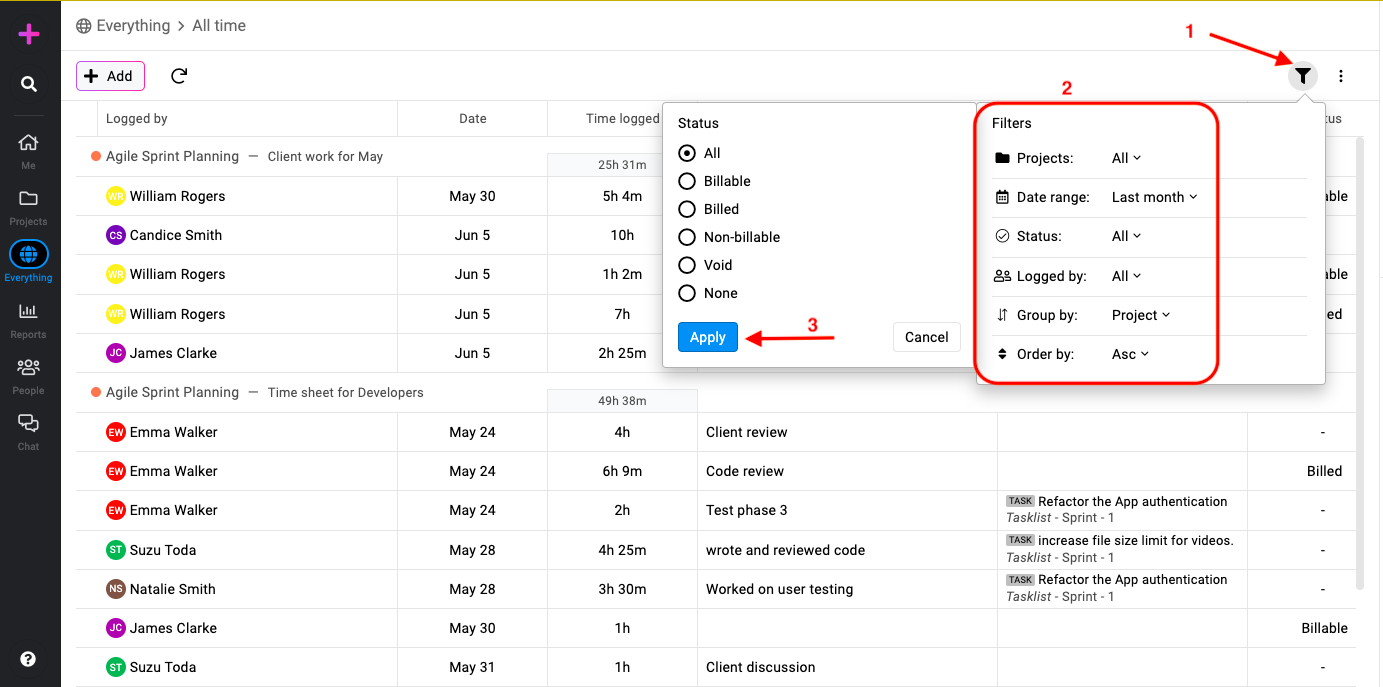
Locate filters: Find the filter option on the top right side of the “All time” page.
-
Set filters: Click on the filter icon, choose your desired filter (such as projects, date range, status, etc.), and click “Apply” to see the filtered time entries.\
-
Filter by project****: The project’s filter allows users to focus on specific projects and view time entries related to them.
-
Filter by date range****: The date range filter enables users to view time entries logged within a specific time duration.
-
Filter by status****: Users can filter time entries based on their status, such as billable, billed, or non-billable.
-
Logged by****: With the logged by filter, users can narrow down time entries to those of a particular team member.
-
Grouping time entries****: Time entries can be grouped in various ways to gain insights into time utilization. Users can group time entries by date, person, project, or timesheet.
-
Ordering time entries****: Users have the flexibility to order time entry groupings in ascending or descending order by the date logged.
-
Downloading CSV from all time
Efficient data analysis is crucial for informed decision-making in project management. One such feature is the ability to download CSV files from the all time section, providing users with comprehensive data for deeper analysis.
-
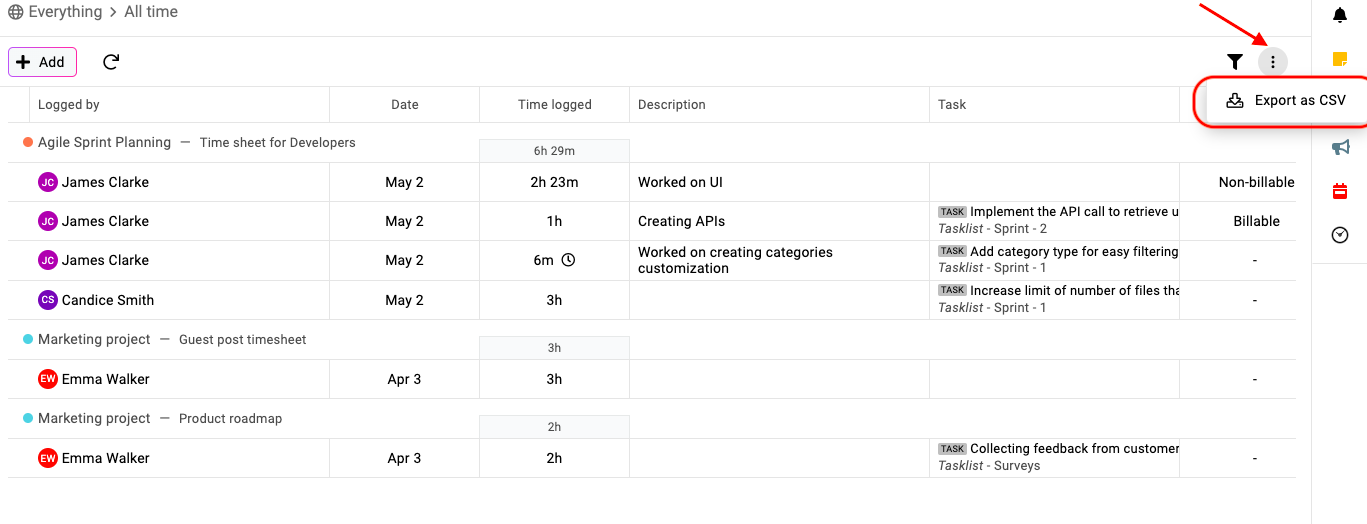
Click on the three dots present on the top right side alongside the filter options.
-
Choose Export as CSV option.\
Note: In case no CSV gets downloaded, please check if the pop up for the browser is blocked or not.
Last updated today
Built with Documentation.AI