

How to collaborate on notes
Comments on note
-
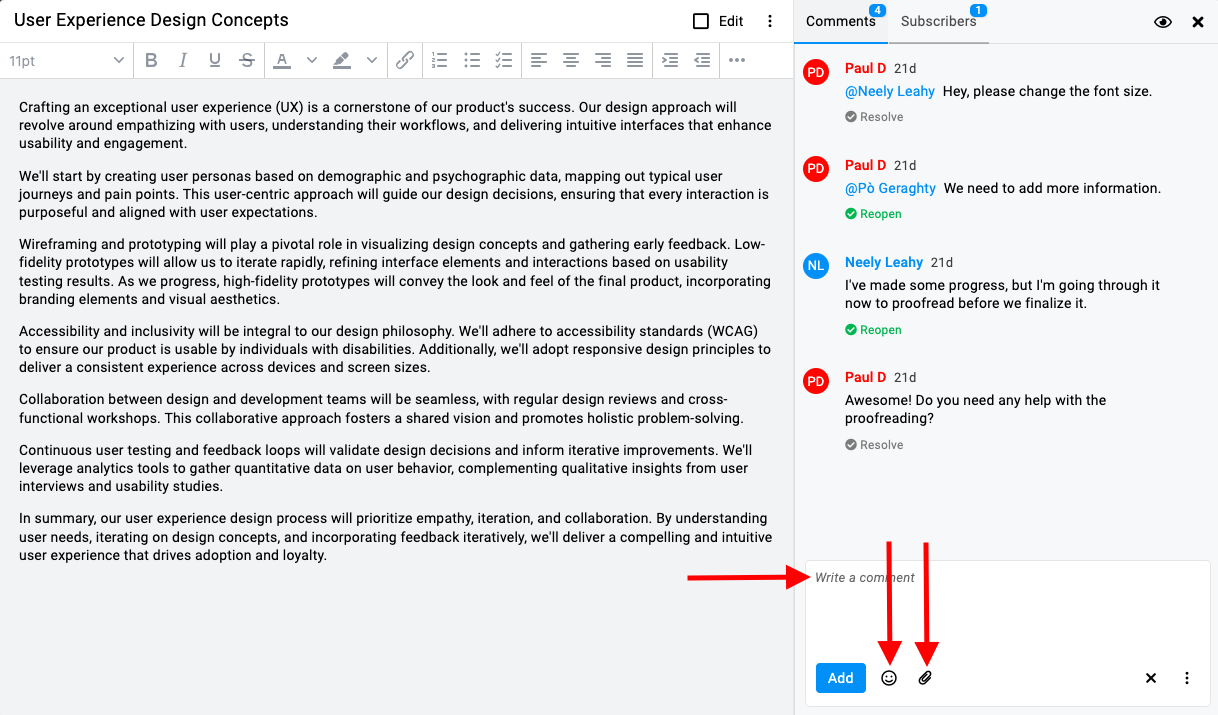
Write your comment, add emojis, or attach files & documents: Type your feedback or message in the comment box. Use the emoji icon to insert emojis into your comment. Click the attachment icon to upload and attach files.\
-
Click add: After composing your comment, click the ‘Add‘ button to post it.
Comment approvals
-
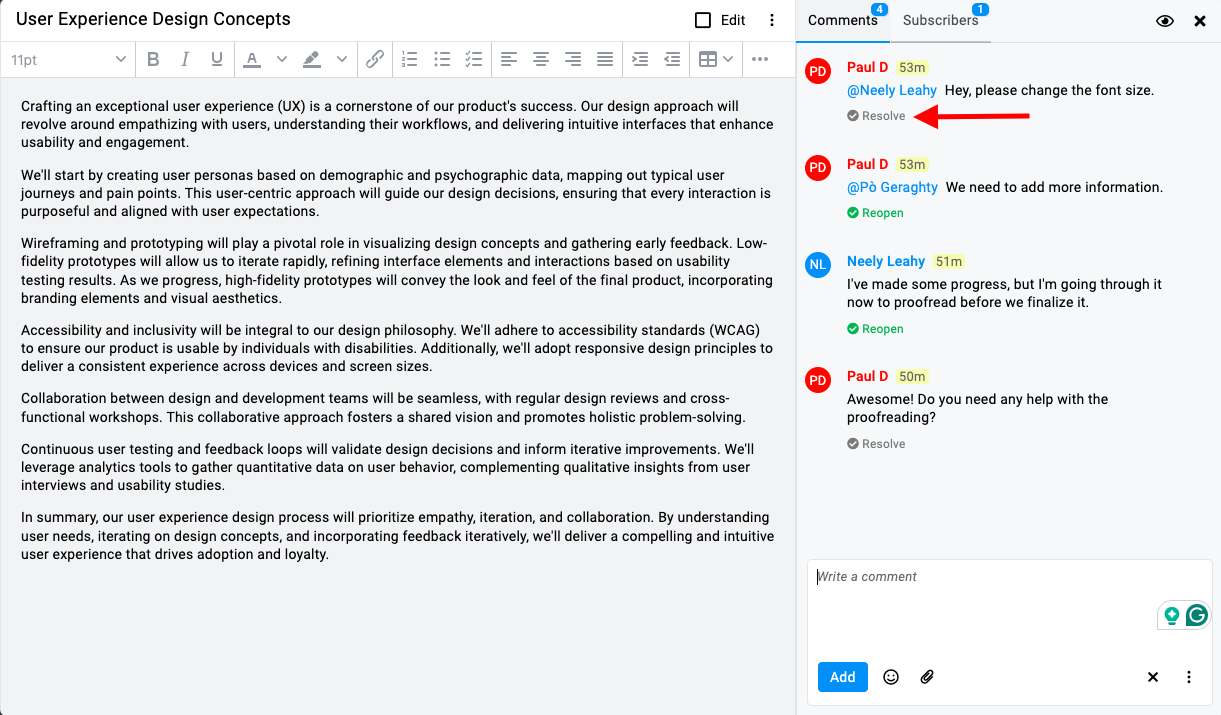
Resolve a comment: Identify the comment you want to approve or acknowledge. Click on the “Resolve” option within that comment.\
-
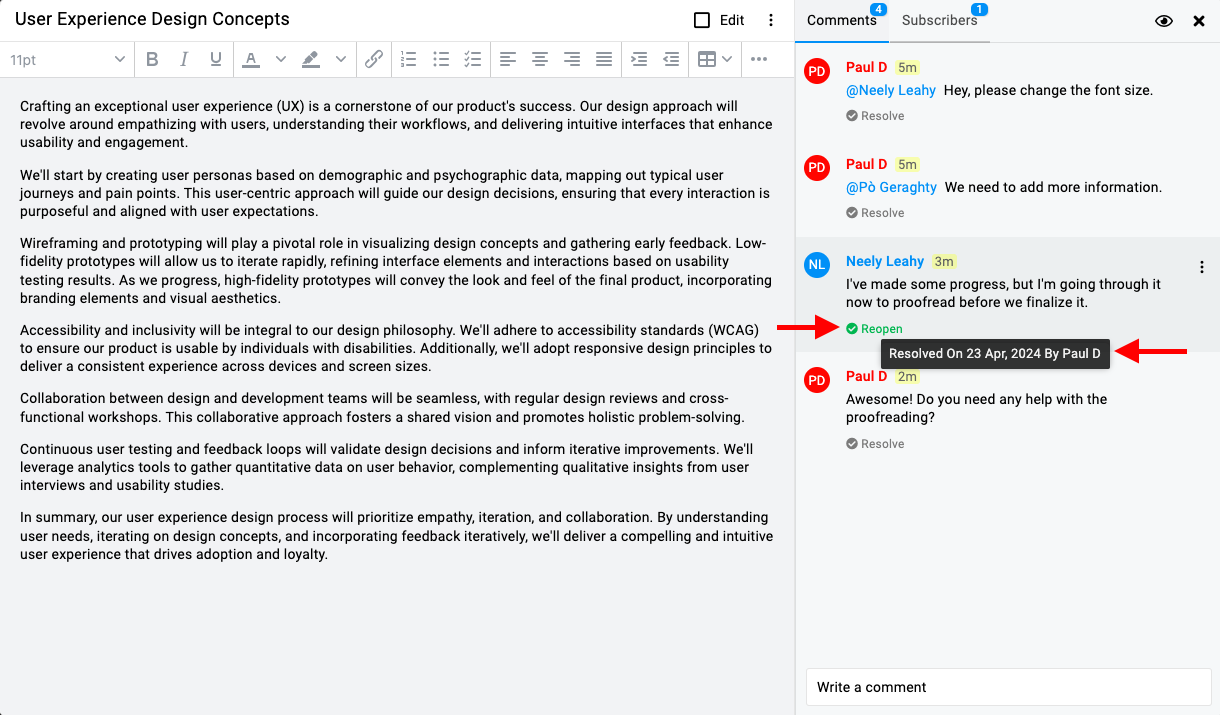
Confirmation of approval:\
-
Once marked as resolved, it will be highlighted in green.
-
Hover over the “Reopen” option to view the name of the person who resolved it and the timestamp of when it was resolved.
-
If you later want to reconsider or reopen the resolved comment, click on the “Reopen” option that replaces the “Resolve” button.
-
This action will revert the resolved status, allowing further discussion or changes.
-
Note: By following these steps, you can effectively manage comments within ProofHub notes by approving suggestions or feedback using the “Resolve” feature and reopening them if necessary.
@Mention in notes comment
-
Type “@” within the comment box. This will trigger a list of subscribers associated with the note.
-
Select subscriber: From the list that appears, select the subscriber you want to mention. This will tag them in your comment.\

Last updated today
Built with Documentation.AI