

How to manage bulk allocation
The bulk allocation feature in ProofHub allows you to efficiently assign and subscribe multiple tasks, files, discussions, and notes from one person to another in a single action.
Bulk allocate items
-
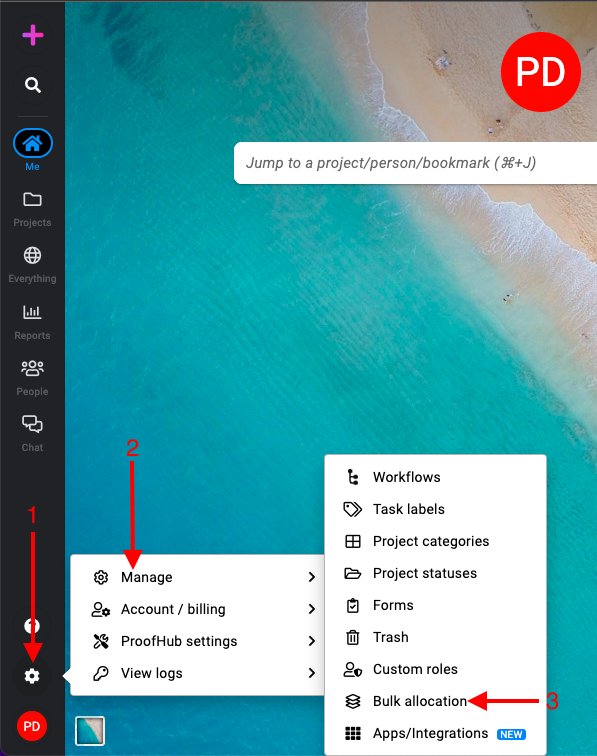
Manage section: Select the “Manage” section and select “Bulk allocation“.\
-
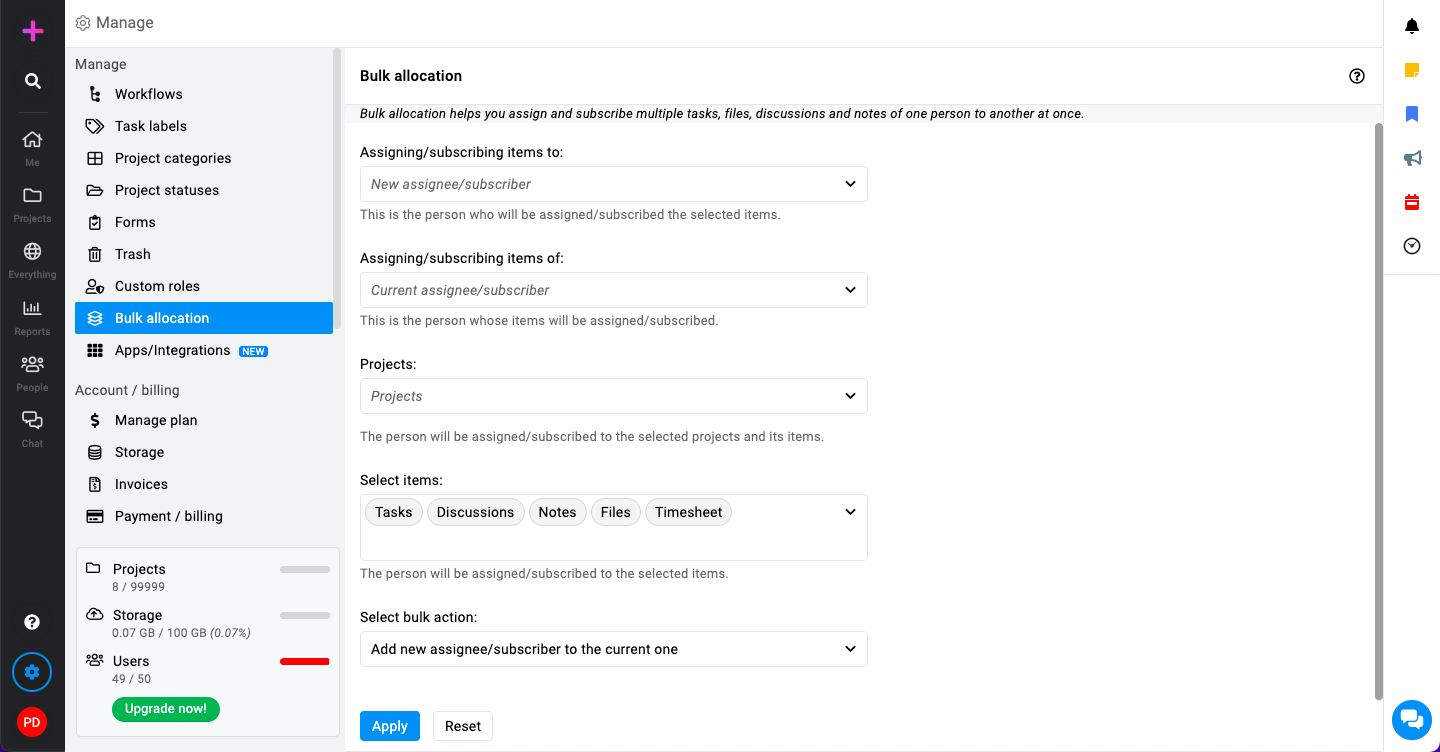
Manage selections:\
-
Assigning/subscribing items to:
-
Definition: This refers to the person who will receive the selected items (tasks, files, discussions, notes).
-
Action: Select the user from the dropdown menu or list to whom you want to assign or subscribe to these items.
-
-
Assigning/subscribing items of:
-
Definition: This refers to the person whose items (tasks, files, discussions, notes) will be reassigned or have a new subscriber added.
-
Action: Select the user from the dropdown menu or list whose items you want to bulk allocate.
-
-
Projects:
-
Definition: These are the projects within which the items to be reassigned or subscribed are located.
-
Action: Choose the specific project(s) where the bulk allocation should take place. This ensures that only items within these projects are affected.
-
-
Select items:
-
Definition: These are the specific items (tasks, files, discussions, notes) that will be reassigned or subscribed.
-
Action: Select the items you want to include in the bulk allocation. You can choose individual items or select all items within the chosen projects.
-
-
Select bulk action
-
Replace current assignee/subscriber: This option will replace the current person assigned or subscribed to the selected items with the new person.
-
Add new assignee/subscriber: This option will add the new person as an additional assignee or subscriber without removing the current ones.
-
-
-
Click on the “Apply” button.
Last updated today
Built with Documentation.AI