

How to manage file versioning
In ProofHub, a file version represents each distinct iteration or update of a file that has been uploaded. This allows users to track changes, revert to previous versions if necessary, and maintain a history of revisions. File versioning in ProofHub helps streamline collaboration by ensuring that team members can access the most recent version of a file and track its evolution over time.
Upload a new version of the file
-
Right-click on the file or click on the three dots and select the “Upload new version” option.\
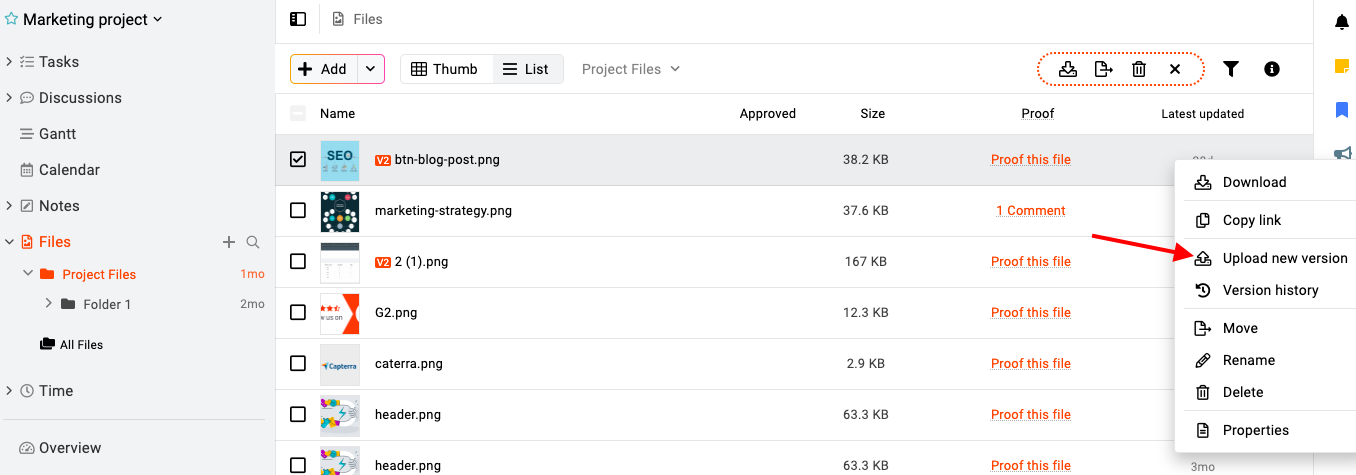
Upload a new version of file in ProofHub -
Upload the new version of the file, select people to be notified, click “Ok,” and the new version will be uploaded.\
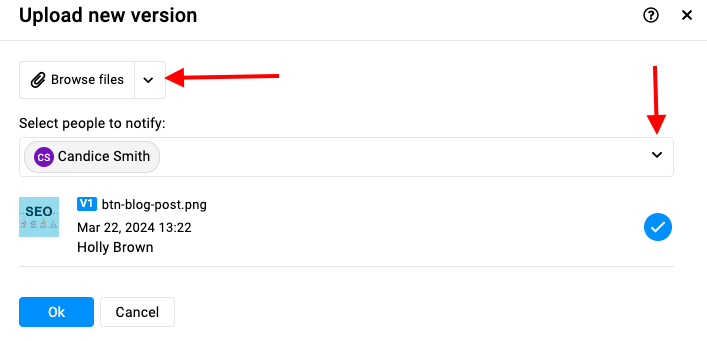
View version history
-
Go to the top right of the screen click on the “i” icon and select the “Version history” option.\
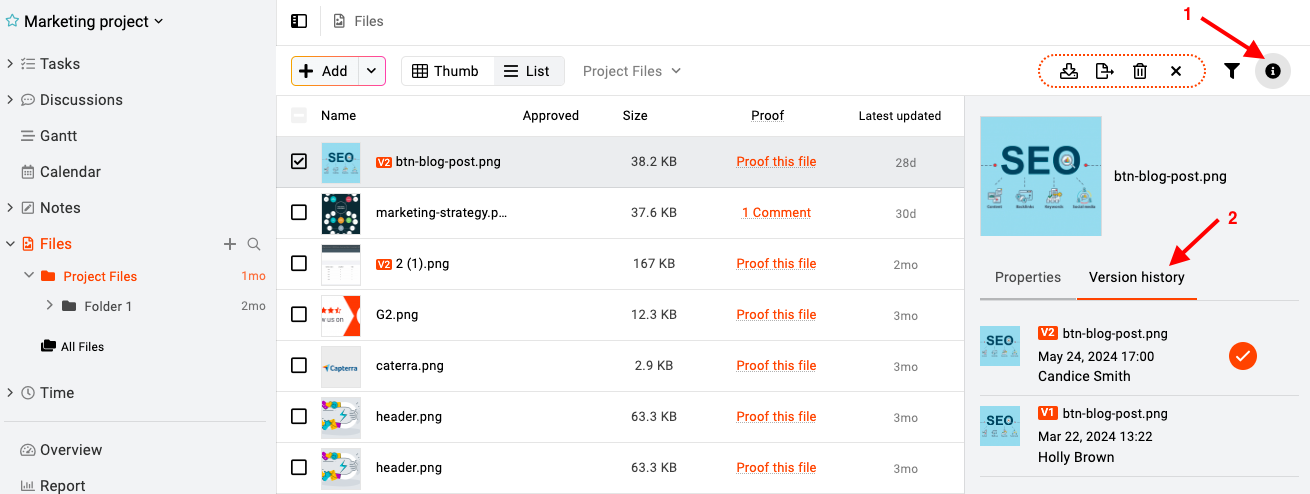
Version history in ProofHub's files section -
Or you can view the version history of the file by right-clicking on the file or clicking on the three dots and selecting the “Version history” option.\

Version history by clicking on 3 dots in ProofHub
Note: The current version of the file will appear with a current label.
Convert the previous version to the current
\

-
Right-click on the file and select “Version history”.
-
A window will open on the right from where you can view all the versions of the file.
-
Click on the “Make current” option to convert a previous version into the current version of the file.
**Note:**** **Once you make the selected version as current, all versions uploaded after it will be deleted.
Delete the previous version

-
Right-click on the file and select “Version history”.
-
Hover over the previous version that you wish to delete and click on the three dots.
-
Select “Delete” from the context menu.
-
A confirmation window will appear on the screen. Click “Yes” to confirm the deletion.
Note: The previous version deleted can also be restored from “Trash”**. The restored file will appear like the previous version on the same file.
Download the previous version

-
Right-click on the file and select “Version history”.
-
Hover on the previous version that you wish to download and click on the three dots icon.
-
Select “Download” from the context menu.
Last updated today
Built with Documentation.AI